Panopto is a recording tool used to capture screen activity, audio, and video for instructional content, presentations, and demonstrations. You might choose Panopto when you need to record a lecture, walkthrough, or explanation directly from your computer, especially when the recording needs to be shared securely with a class or campus audience. It’s well suited for narrated slides, software demos, and voice-only recordings.
1. Accessing Panopto
Go to the Dickinson Gateway
Click the green Panopto icon
Note: if using a Mac, Google Chrome works best
2. Setting Up Video Capture
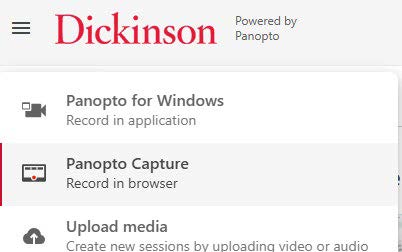
Click Create in the top left and select Panopto Capture
3. Adjusting Screenshare Settings
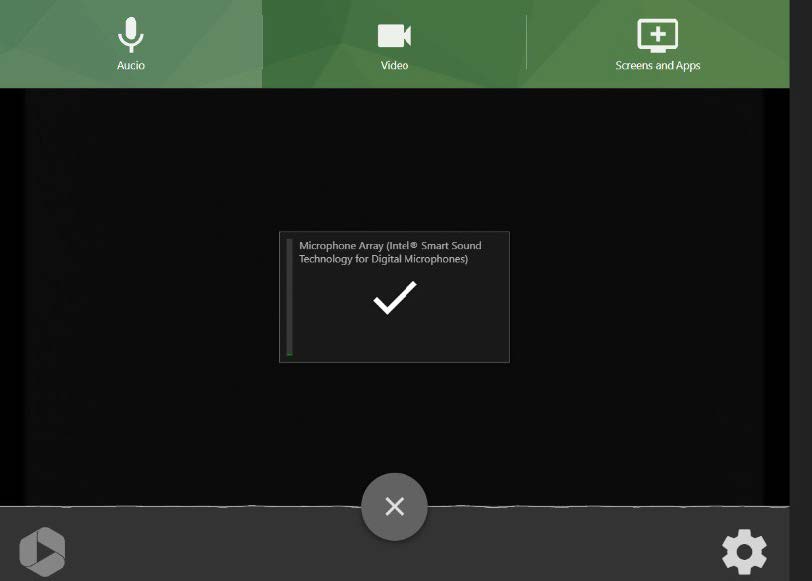
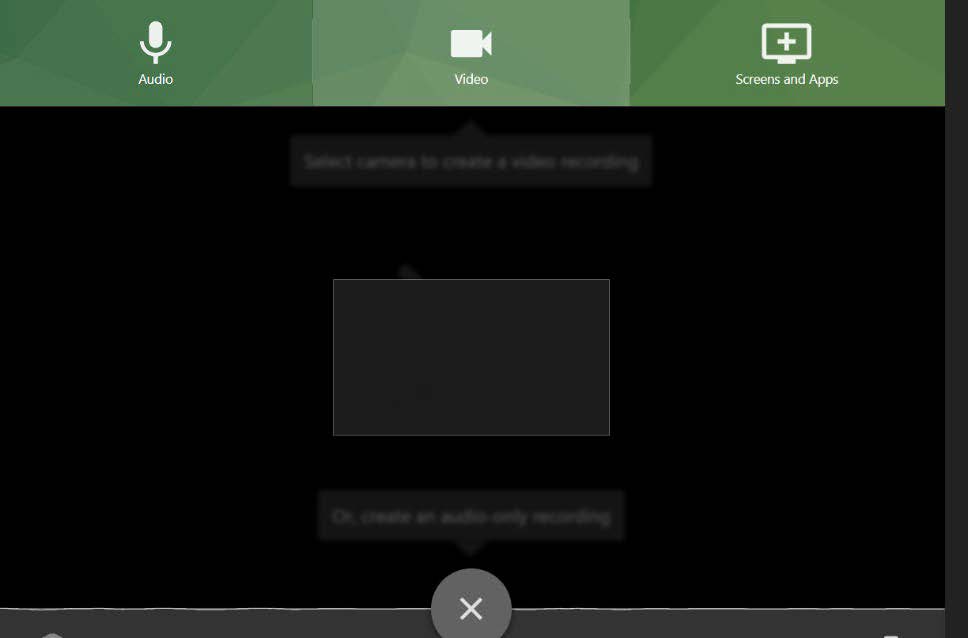
Adjust your Audio, Video, and Screenshare settings
If you’re only recording your screen, remember to select Audio, and click the checkmark so that it turns to an “X” to ensure your voice won’t be captured
Do the same thing for Video to ensure you won’t be seen in the recording
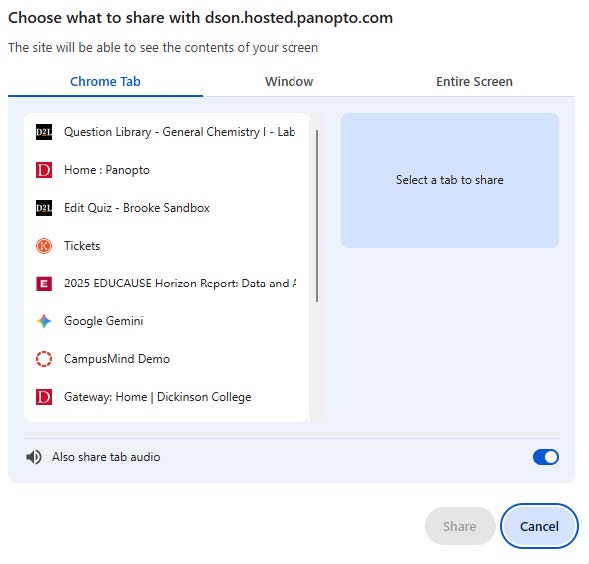
Select the tab or window you want to record
If you want the audio to come with it, be sure to switch the Also share tab audio toggle on
Click Share
4. Starting the Recording
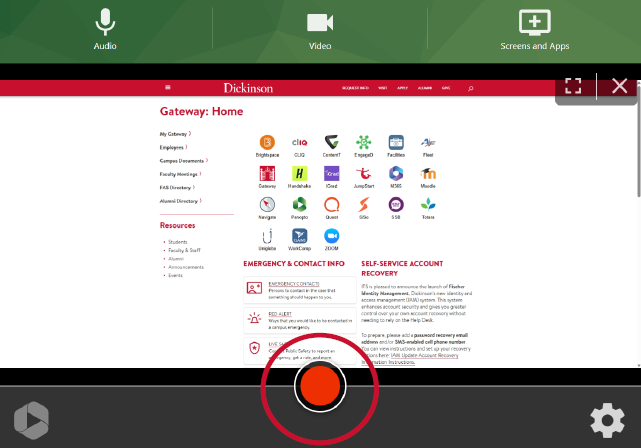
Hit the record button
You will be given a 5-second countodwn
Consider waiting a second or two after the countdown finishes before playing what you want to record so nothing gets cut off
5. Stopping the Recording
Navigate to the tab where Panopto is open and press the Stop button
Once you have stopped the recording, Panopto will process the file
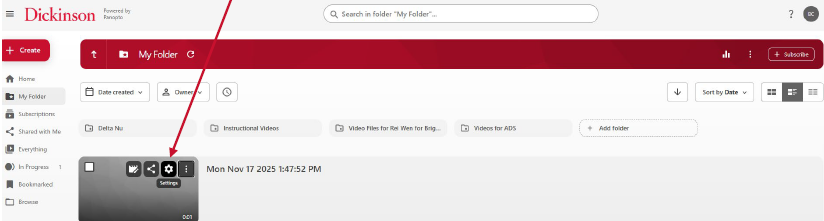
In Panopto, once the processing has finished, click the gear icon on the recording preview image
6. Downloading the Audio Only
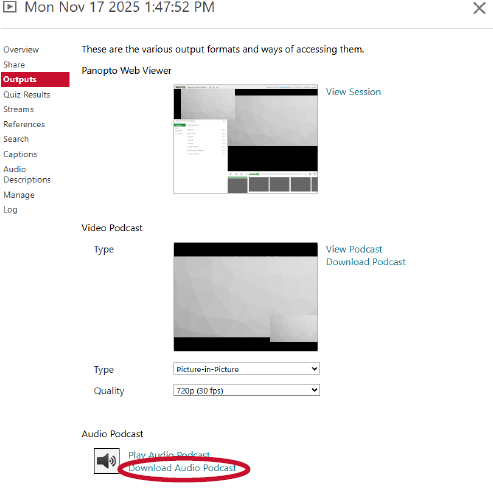
Select Outputs from the menu on the left
At the bottom, select Download Audio Podcast
This will download the file to your computer as an .mp3
7. Downloading the Video
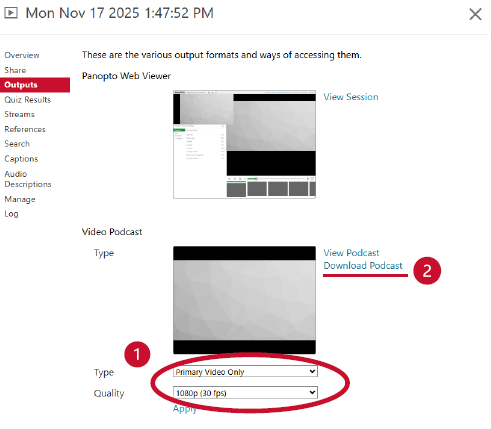
If you want to download both audio and video, you will need to select Primary Video Only from the Type dropdown
From the Quality dropdown, we recommend selecting 1080p (30 fps)
Note: You will need to wait until the video finishes processing again before you will be able to download the file.
Chapters allow viewers to jump to specific parts of a YouTube video. This is especially helpful for longer videos, tutorials, lectures, and presentations. Chapters improve viewer experience, accessibility, and make your video easier to navigate and reference.
This tutorial walks you through adding chapters to a YouTube video using timestamps in the video description.
1. Upload and Publish Your Video
Sign in to YouTube Studio
Upload and publish your video
Wait until processing is complete
Chapters can be added after the video is published.
2. Open the Video Details Page
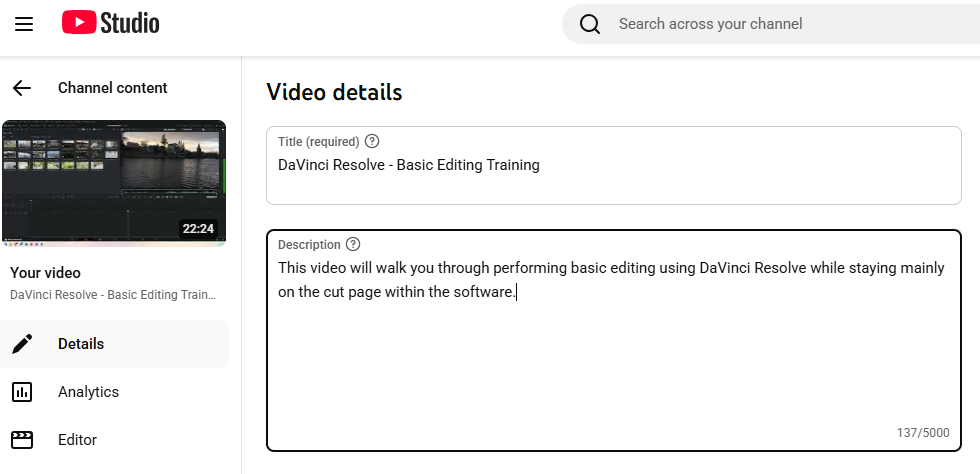
In YouTube Studio, click Content
Select the video you want to edit
Scroll to the Description box
This is where chapters are created.
3. Create Chapter Timestamps
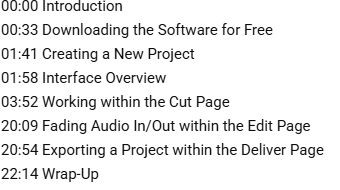
In the description, add timestamps in this format:
Each timestamp must be on its own line
Each timestamp must include a title
YouTube automatically converts these into clickable chapters.
4. Follow Chapter Rules
To work correctly, chapters must meet these requirements:
The first timestamp must start at 00:00
There must be at least three chapters
Each chapter must be 10 seconds or longer
Titles should be clear and descriptive
If these rules aren’t met, chapters will not appear.
5. Save Your Changes
Click Save
Refresh the video page to confirm chapters appear
Chapters will appear as sections on the playback bar as well as in the description as clickable links.
6. Edit or Update Chapters
Return to the video description at any time
Adjust timestamps or titles as needed
Save changes again
Chapters update immediately.
Helpful Tips
Keep chapter titles short and meaningful
Use chapters for major content shifts, not every sentence
Match titles to what viewers see or hear at that moment
Chapters work well alongside captions for accessibility
Chapters help viewers rewatch specific sections later
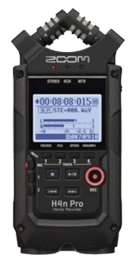
The Zoom H4n Pro is a portable, high-quality audio recorder used for interviews, podcasts, music recording, and field audio. It features built-in stereo microphones and external microphone inputs, making it flexible for a wide range of recording situations where clear, professional sound matters.
This tutorial will help you record audio using the built-in microphones and save your files for later use.
1. Getting Started
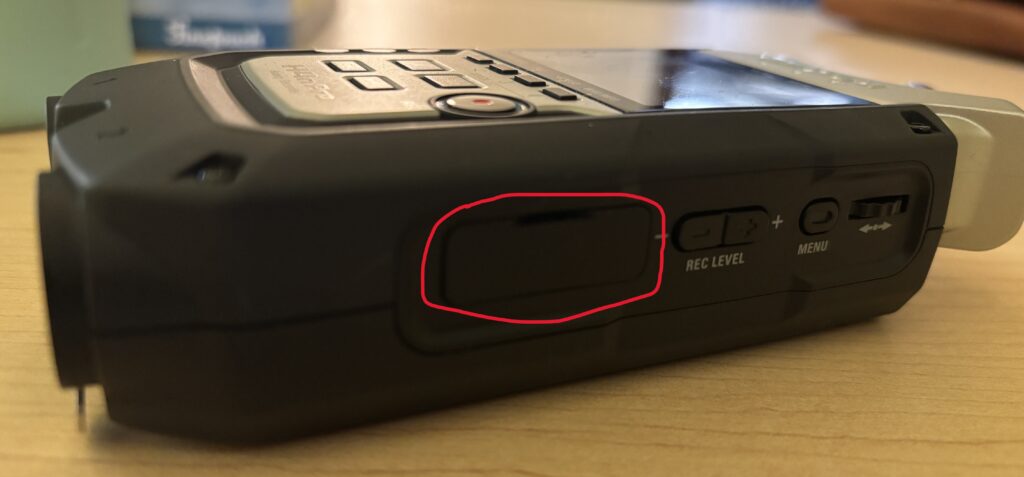
Insert an SD card into the side of the recorder
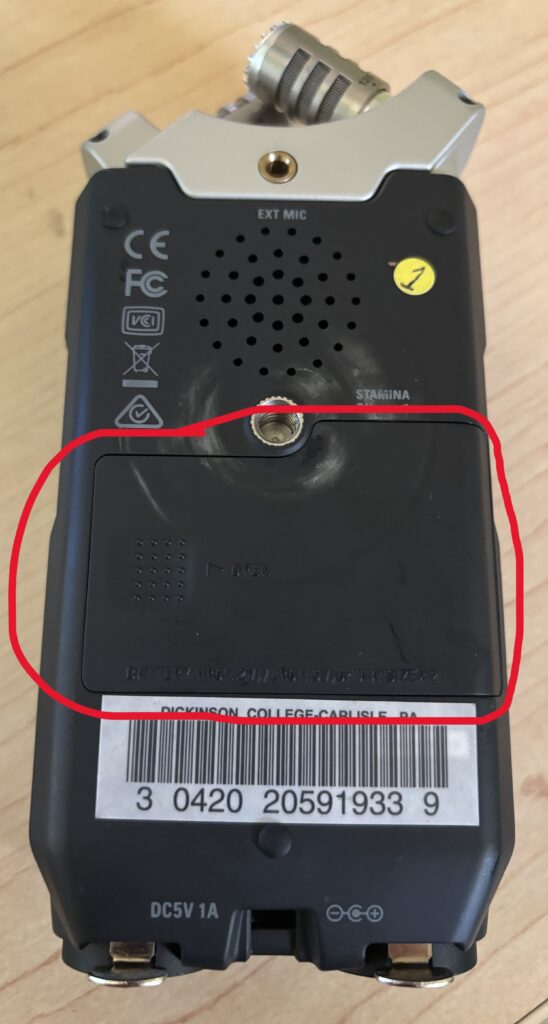
Insert fresh AA batteries or connect the power adapter
Slide the Power switch to turn the recorder on
Wait for the unit to fully boot
2. Choosing a Recording Mode
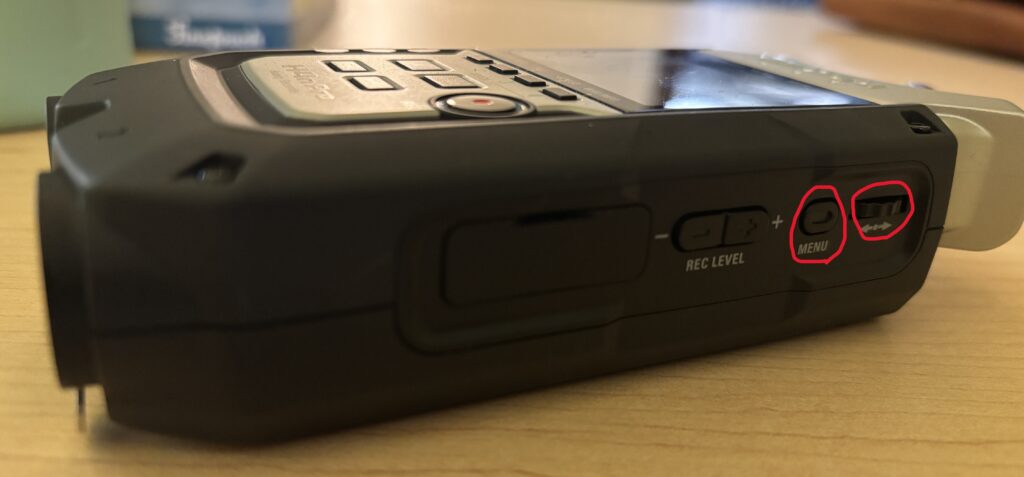
Press the Menu button located on the right side of the device
Use the wheel on the side to navigate to Mode
Select Stereo and press the wheel to confirm
3. Positioning the Built-In Microphones
The H4n Pro has adjustable X/Y stereo microphones on top.
Make sure those on pointed in the direction of your source
Decide if you want the mics to pick up a wider area (120) or focus in more (90) by turning the mics
Then, place the recorder on a table or a small tripod, or hold if necessary
4. Setting Input Levels
Press the Record button once
The meters will activate (standby mode)
Speak at normal volume
Use the + / – buttons on the right side of the device to adjust the recording level
Aim for levels that peak between –12 dB to –6 dB
5. Recording Audio
Press the Record button again to start recording
The timer will begin counting
Remain as still as possible during recording
Press Stop when finished
6. Playing Back Your Recording
Press the Play button
Use the jog wheel to select your file
Adjust playback volume using the buttons on the left side of the device
7. Using External Microphones (Optional)
External microphones provide better control for interviews and studio-style recordings.
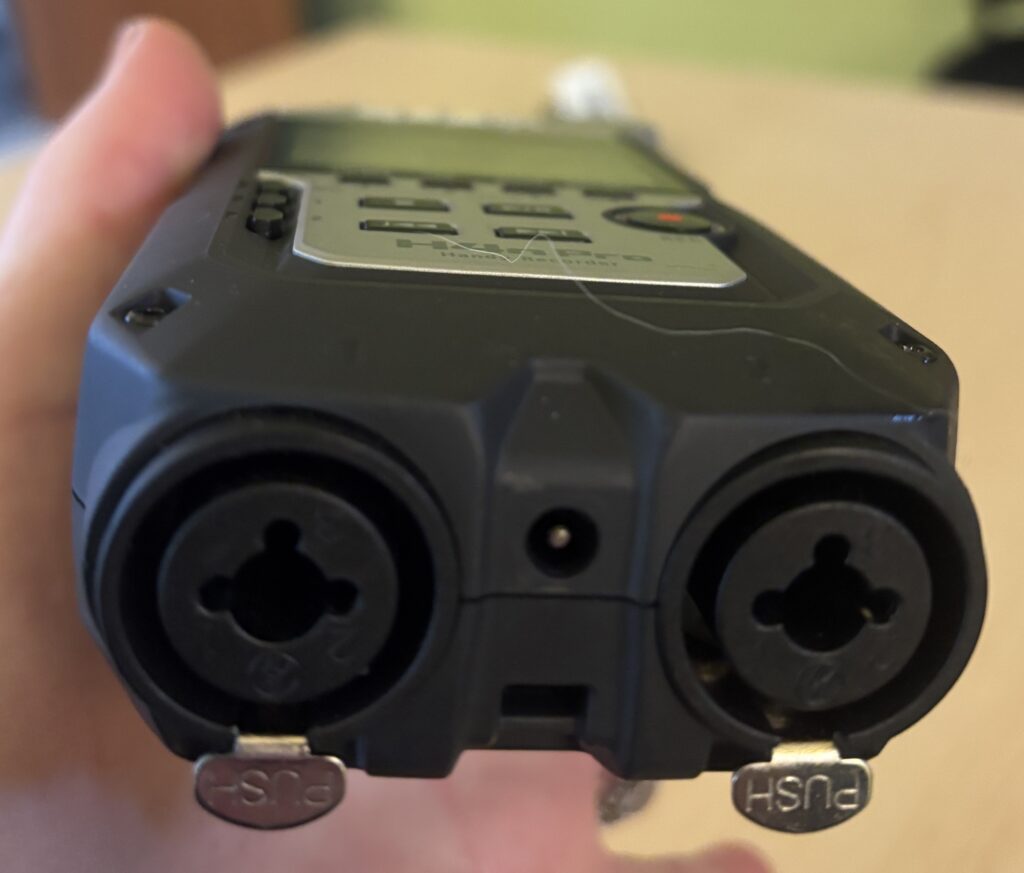
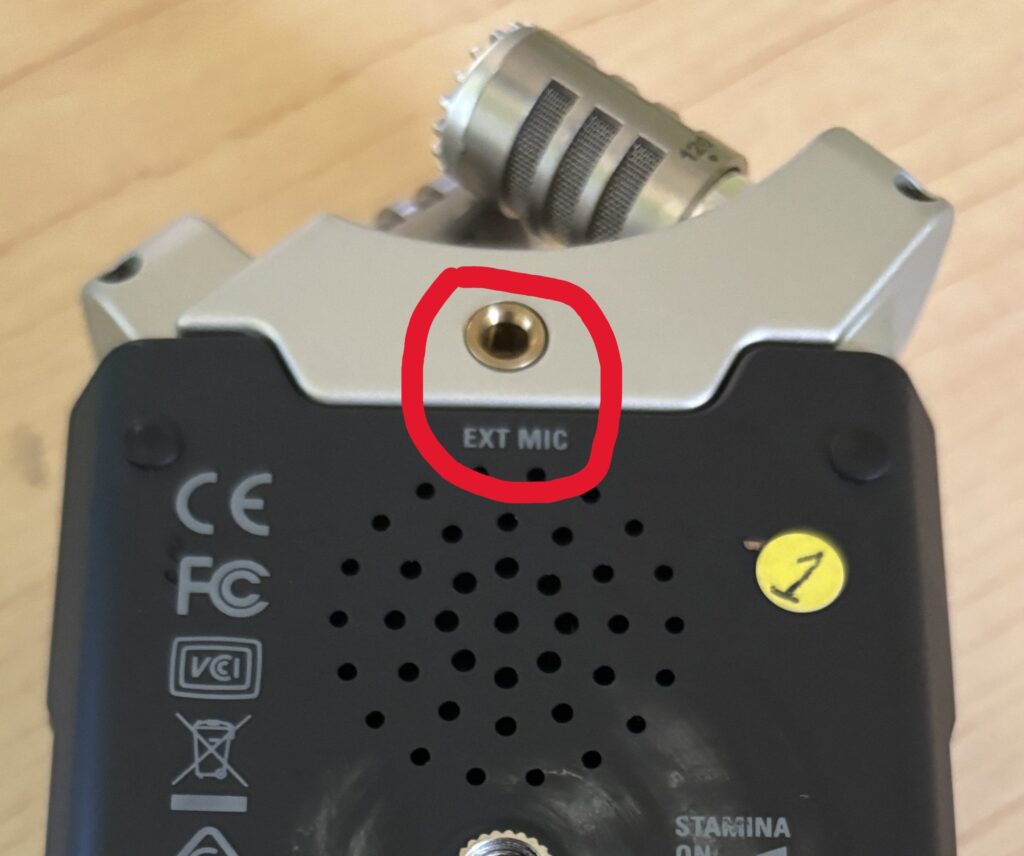
Plug microphones into Input 1 or Input 2 (XLR or ¼”) or into the 1/8″ external microphone
Press the Input button to enable the correct inputs
Adjust levels for each input separately
Monitor sound using headphones if available
8. Transferring Files to a Computer
Power off the recorder
Remove the SD card and insert it into a computer using an SD card reader
Or connect the recorder via USB
Files are typically saved as WAV or MP3, depending on settings
Copy audio files to your computer for editing
Helpful Tips
Always do a short test recording before starting
Remember to have the microphones pointed towards the source (speaker)
Monitor audio with headphones when possible
Record in quiet spaces to avoid background noise
Bring extra batteries for longer sessions
The below video walks you through the basics of setting up and using the Zoom H4n Pro Recorder.
Microsoft Teams is a video conferencing and collaboration tool commonly used for classes, meetings, and group work. If you’re familiar with Zoom, many of the core features in Teams will feel familiar but they may be located in slightly different places. This guide focuses on helping those who have previously used Zoom to get up and running quickly in Teams.
1. Getting Started
Open Microsoft Teams (desktop app or web browser)
Sign in using your institutional Microsoft account
You will land on the Teams or Calendar view
2. Joining a Video Call
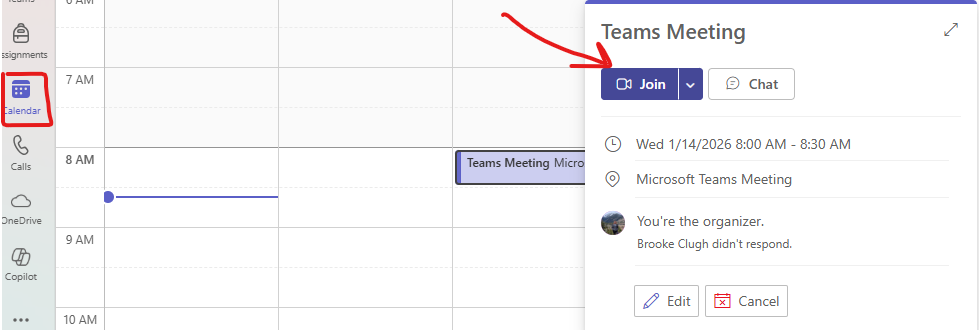
Click the Calendar tab on the left
Find your scheduled meeting and click Join
Or click a meeting link shared via email or chat
Choose your camera and microphone settings
Click Join now
3. Audio and Video Controls During a Call
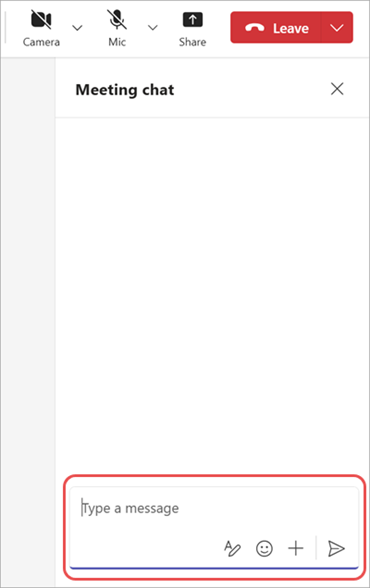
Once in the meeting, controls appear along the bottom of the screen:
Camera icon: Turn video on or off
Microphone icon: Mute or unmute
Leave button: Exit the meeting
4. Chatting During a Call
Click the Chat icon to open the meeting chat
Type messages to everyone in the meeting
Links and files shared in chat remain available after the meeting
5. Sharing Your Screen
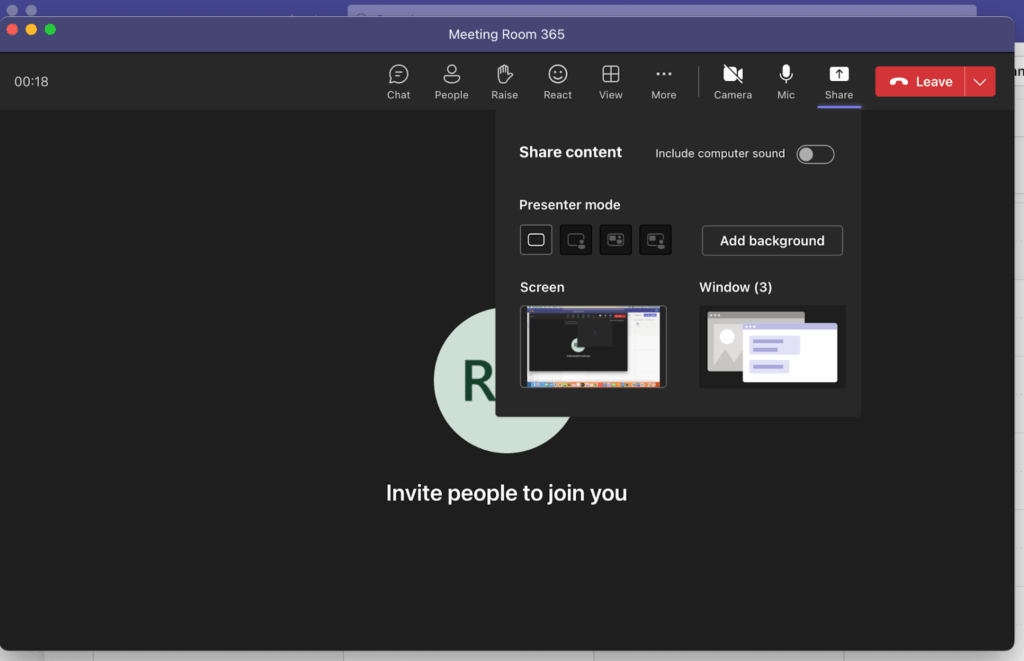
Click Share (rectangle with arrow icon)
Choose what to share:
Entire screen
A specific window
A PowerPoint presentation
Click Stop sharing when finished
6. Managing Participants
Click People to view participants
See who is muted, speaking, or has video on
Meeting hosts may have additional controls
7. Recording a Meeting
Click More options (three dots)
Select Start recording
A notification will appear for all participants
Click Stop recording when finished
Recordings are saved to Microsoft OneDrive or SharePoint, not locally.
8. Ending or Leaving the Call
Click Leave
Hosts can end the meeting for everyone if needed
Helpful Tips for Zoom Users
Teams meetings are often accessed through the Calendar, not a separate “Meetings” tab
Chat and files persist after the meeting so nothing disappears when the call ends
Screen sharing is more app-focused, which helps avoid sharing private notifications
If something feels “missing,” check the More options (⋯) menu
The Singer Heavy Duty sewing machine is a robust, classroom-friendly machine designed to handle thicker fabrics and more demanding sewing tasks. You might choose the Heavy Duty when you’re working with denim, canvas, leather, or multiple layers, or when you need faster stitching and more power than a basic machine provides. It’s perfect for projects that require durability, strength, and versatility without sacrificing ease of use.
This tutorial will help you get started with the Singer Heavy Duty sewing machine. Follow the steps below to thread the machine, wind a bobbin, and sew with confidence.
1. Getting Started
Place the machine on a stable, flat surface
Plug in the power cord and foot pedal
Turn the power switch ON
2. Winding the Bobbin
Place your thread spool on the spool pin
Guide the thread along the bobbin winding path (follow the numbered guides on the machine)
Put the bobbin on the bobbin winder spindle
Push it to the right and press the foot pedal to wind the bobbin evenly
3. Threading the Machine
Raise the presser foot to release the tension discs
Thread the upper thread from the spool through the numbered guides
Follow the threading path down, around the tension discs, and up to the needle
Thread the needle from front to back
Pull several inches of thread toward the back of the machine
4. Inserting the Bobbin
Open the bobbin cover plate
Place the bobbin into the bobbin case so the thread feeds in the correct direction
Pull the thread through the tension spring
Close the bobbin cover
5. Preparing to Sew
Place your fabric under the presser foot
Lower the presser foot
Hold both the top thread and bobbin thread behind the presser foot
Gently press the foot pedal to begin sewing
6. Sewing
Use the stitch selector to pick the appropriate stitch (straight or zigzag)
Direct the fabric with your hands — do not push or pull
Adjust stitch length as needed for your fabric and project
7. Finishing Your Sewing
Stop with the needle down in the fabric
Raise the presser foot
Pull your fabric back carefully and use the built-in thread cutter to trim threads
Helpful Tips
Test stitches on scrap fabric before sewing your project
If stitches look uneven, re-thread both upper thread and bobbin
Avoid forcing thick fabric — let the feed dogs guide it steadily
See the video below for a walkthrough on using the machine.
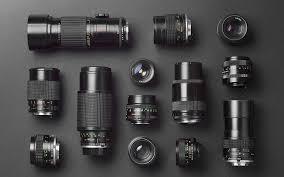
Choosing the right lens can completely change the way your video or photo looks. This quick guide explains the differences between wide-angle, telephoto, and fisheye lenses and when to use each.
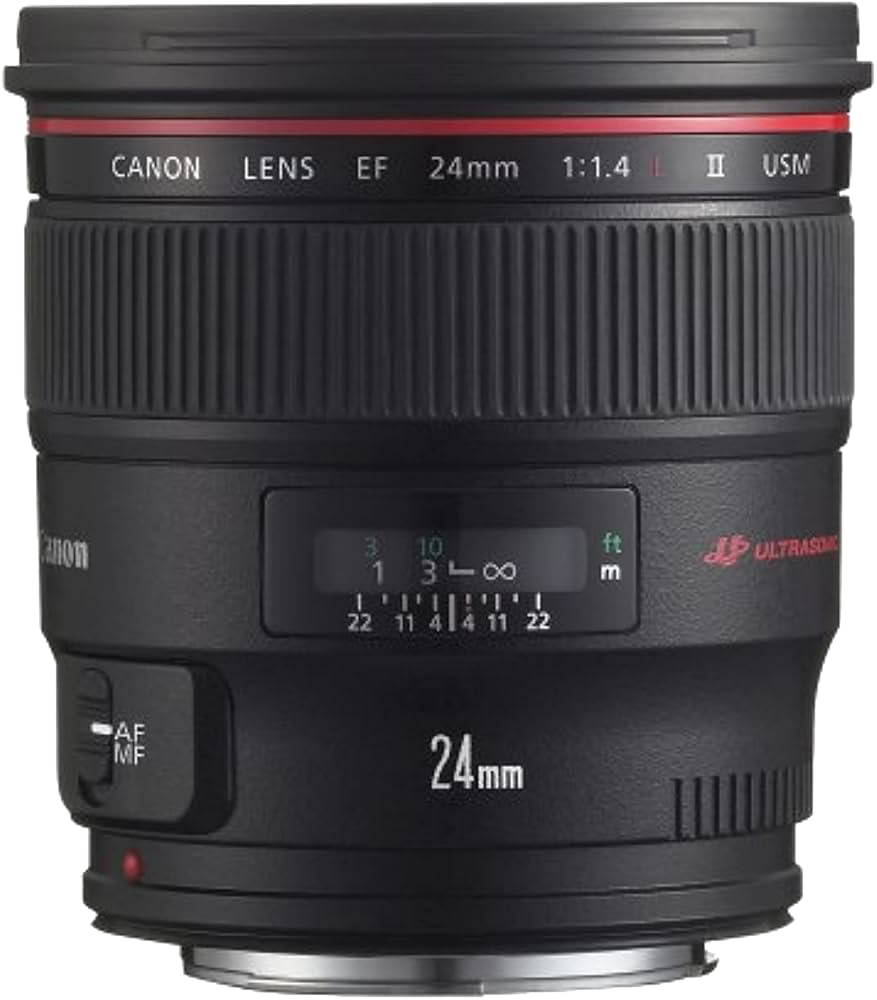
Wide-Angle Lenses
Focal length: Usually 16-50mm
Field of view: Captures a large scene in a single frame
Use for: Landscapes, classrooms, group shots, or when you want to show a lot of context
Effect: Objects appear farther apart, and edges may stretch slightly
Tip: Great for cramped spaces because you can fit more into the shot without backing up.
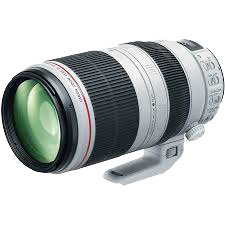
Telephoto (Higher Focal Length) Lenses
Focal length: 70mm or higher
Field of view: Narrow; zooms in on distant subjects
Use for: Sports, wildlife, interviews, or any shot where you can’t get physically close
Effect: Compresses depth, making background and foreground appear closer together
Tip: Requires steady hands or a tripod.
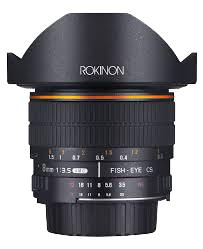
Fisheye Lenses
Focal length: Typically around 8–16mm
Field of view: Ultra-wide, often 180°
Use for: Creative effects, immersive shots, extreme perspectives, or 360° capture setups
Effect: Distorts the image, curving straight lines and exaggerating scale
Tip: Fun for dramatic or artistic shots, but not ideal for standard portraits or professional-looking video.
Helpful Tips
Always consider your space and subject before choosing a lens
Use wide lenses for tight rooms, telephoto for distant subjects, fisheye for creative or immersive effects
Check your camera’s crop factor as smaller sensors make lenses appear more zoomed in
Experiment! The more you try different lenses, the better you’ll understand their effects
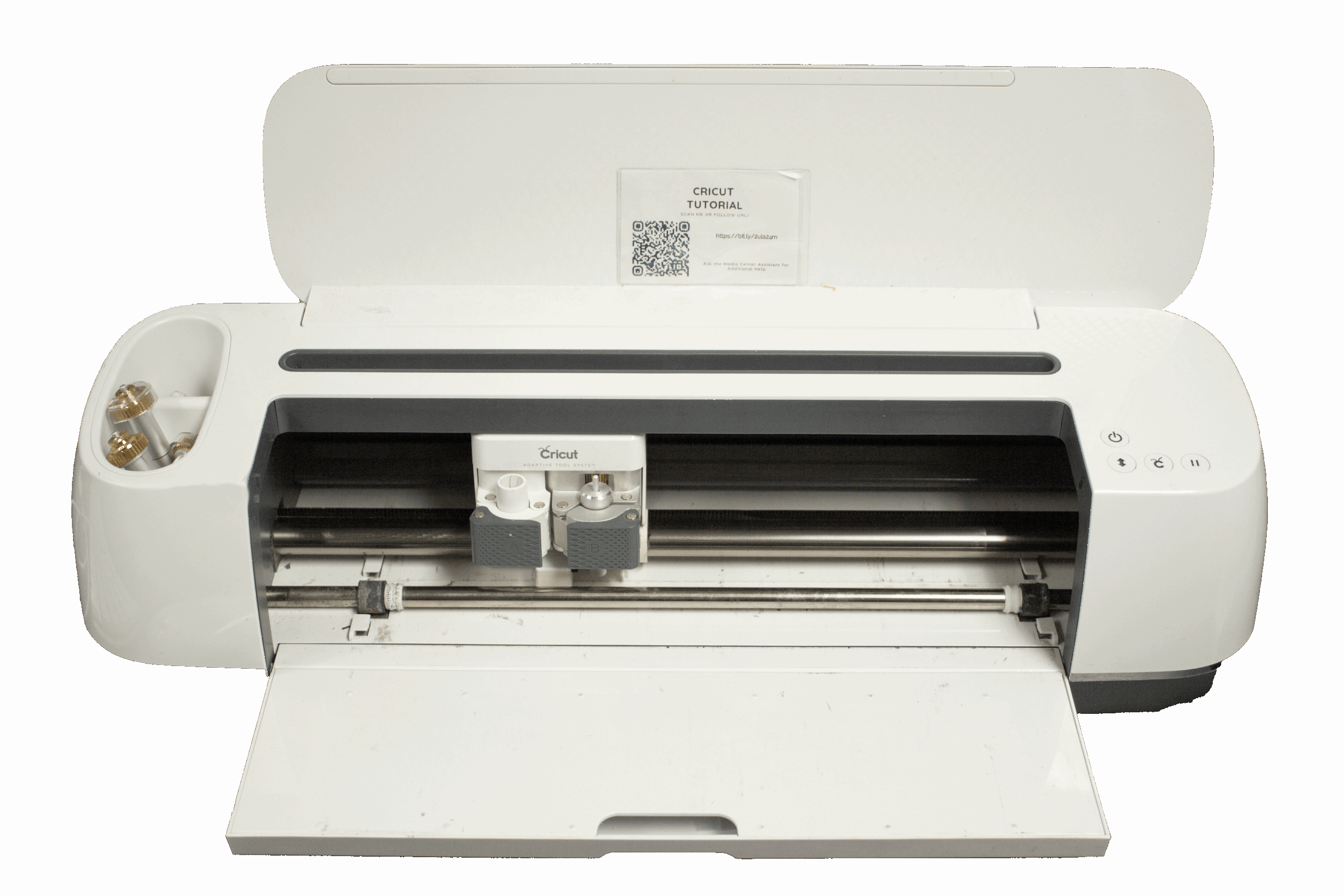
The Cricut cutting machine is a digital cutting tool used to precisely cut designs from materials like vinyl, paper, cardstock, and iron-on. You might choose a Cricut when you want to create custom decals, signs, labels, apparel designs, or project components with clean, professional results. It’s ideal for creative projects, class assignments, and prototypes where accuracy and repeatability matter.
This tutorial will help you get started with the Cricut machine. Follow the steps below to learn how to set up your design, load materials, and make your first cut.
1. Getting Started
Power on the Cricut machine
Open Cricut Design Space on the computer
2. Creating or Choosing a Design
Start a new project or choose a ready-made design
Add text, shapes, or images to your canvas
Resize and arrange your design as needed
3. Preparing Your Design to Cut
Click Make It in Design Space
Select the correct material type (vinyl, cardstock, iron-on, etc.)
Confirm your cut settings
4. Loading Materials and Tools
Place your material on a cutting mat
Align it with the grid and smooth it down firmly
Insert the mat into the Cricut and press the Load button
Make sure the correct blade is installed
5. Cutting Your Design
Press the Go / Start button when prompted
Stay nearby while the machine is cutting
Do not remove the mat until the cut is complete
6. Removing and Finishing Your Project
Carefully unload the mat
Remove your cut design from the mat
Weed, assemble, or apply the design as needed
Helpful Tips
Always double-check material type and blade
Use a test cut for unfamiliar materials
Don’t force materials—stop the machine if something looks wrong
See the video below for a detailed video walkthrough.
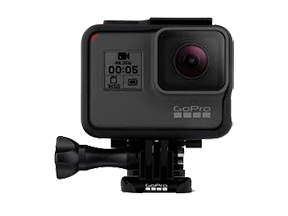
The GoPro HERO5 Black is a compact, durable action, waterproof camera designed for capturing high-quality video and photos in dynamic environments. You might choose the HERO5 Black when you need a small, portable camera for movement-based shots, hands-free recording, or situations where a traditional camera isn’t practical. It’s ideal for action footage, point-of-view shots, time-lapse projects, and creative angles.
This tutorial will help you get started with the GoPro HERO5 Black. Follow the steps below to learn how to power on the camera, record video, and use basic features.
1. Turning the Camera On
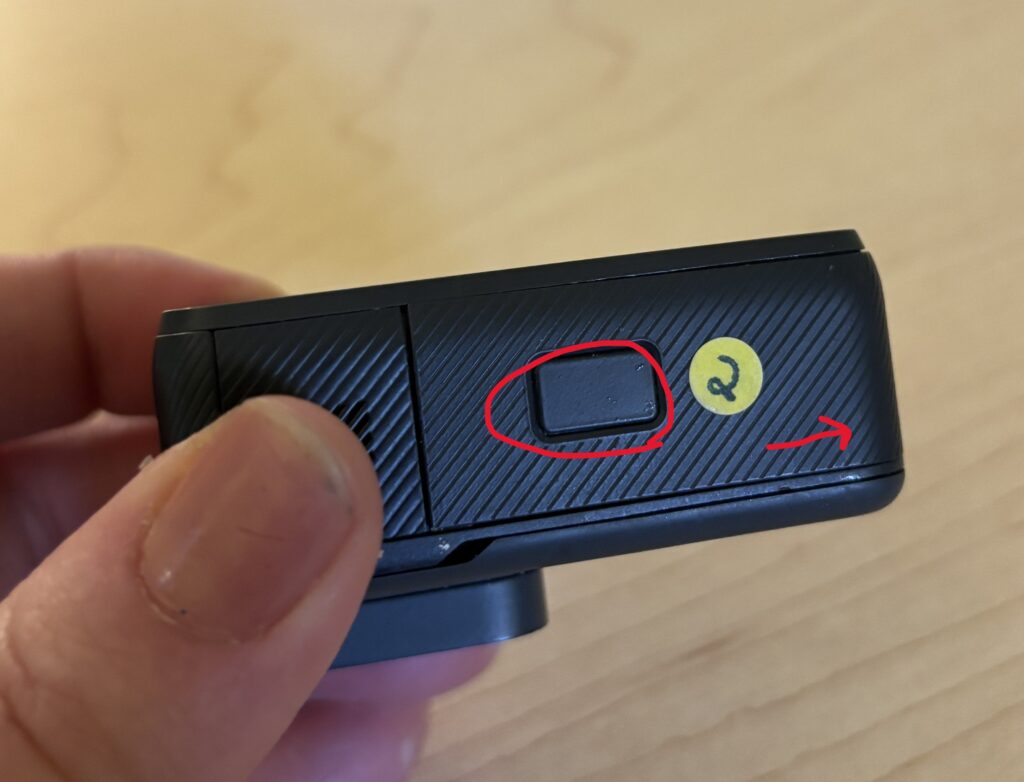
Make sure the battery is charged and a microSD card is inserted by pressing the button on the bottom of the GoPro and gently sliding to the right
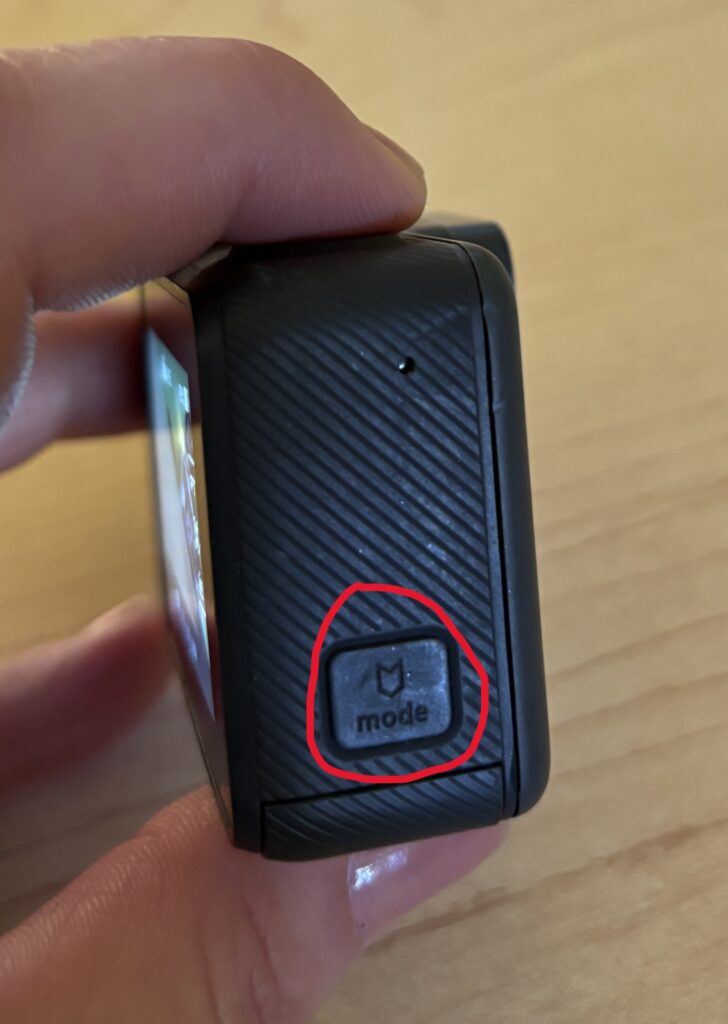
Press and hold the Power/Mode button on the side of the camera to power the device on
2. Adjusting Settings
Swipe down on the screen and tap the lock to unlock the settings
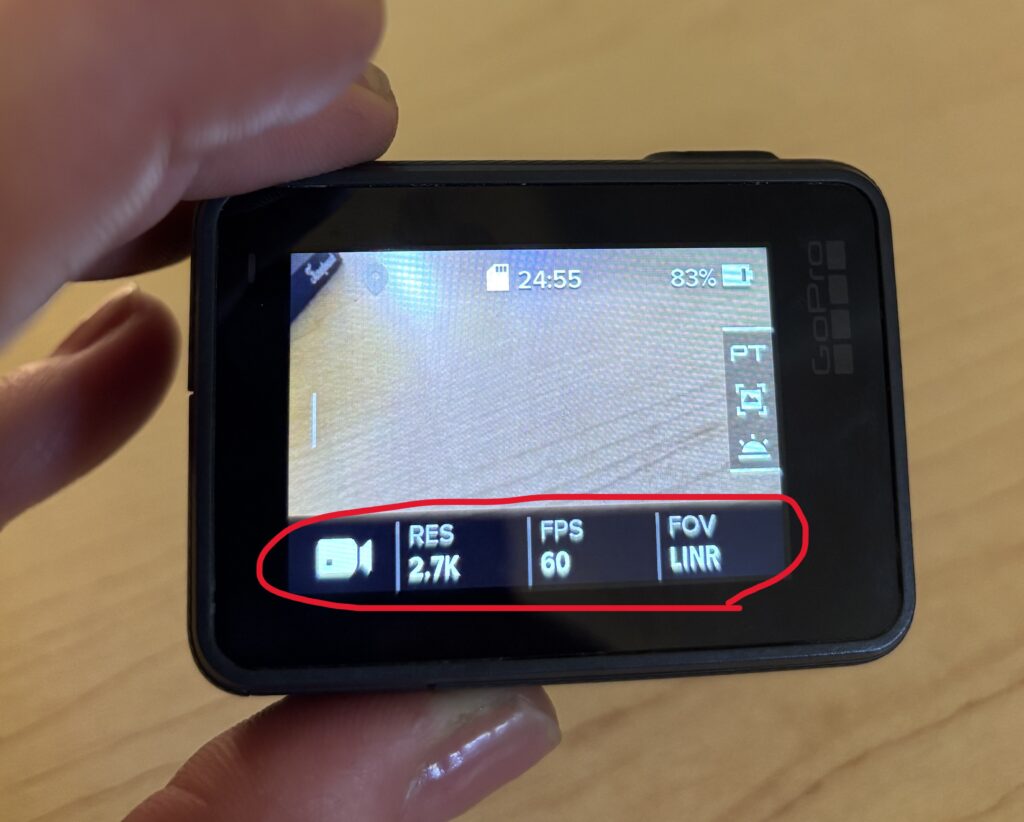
On the touchscreen, press any settings you’d like to adjust (ex: frame rate, resolution, time lapse, etc.)
3. Recording Video
Press the Shutter button on the top of the camera to start recording
Press the Shutter button again to stop recording
4. Taking Photos
Swipe on the touchscreen to switch to Photo mode
Frame your shot
Press the Shutter button to take a photo
5. Mounting and Stability
The GoPro works best when securely mounted.
Use the mounts provided by the Media Center
Double-check that mounts are tight before recording
Use a tripod or grip for stationary shots
6. Audio Basics
The built-in microphones record sound automatically
Avoid covering the microphone openings
Wind and background noise can affect audio outdoors
7. Reviewing and Deleting Footage
Swipe down on the touchscreen and tap Playback
Swipe left or right to review clips
Delete clips you don’t need to free up storage space
Helpful Tips
Charge batteries fully before filming
Clean the lens before recording
Use shorter clips for easier editing
Test your setup before important shots
You’re Ready to Capture the Action
The GoPro HERO5 Black makes it easy to capture immersive video from unique angles. Start with automatic settings, secure your camera properly, and focus on creative positioning to get the most out of your footage.
For a detailed video walkthrough on using the GoPro Hero 5 Black, see the video below.
The Canon VIXIA HF R50 is a compact, easy-to-use camcorder designed for straightforward, reliable video recording. You might choose the VIXIA HF R50 when you need simple setup, long recording times, and dependable video for interviews, presentations, performances, or documentation. It’s well suited for users who want quality video without managing complex camera settings.
This tutorial will help you get started with the Canon VIXIA HF R50 camcorder. Follow the steps below to learn how to power on the camera, record video, and review your footage.
1. Turning the Camcorder On
Make sure the battery is charged and an SD card is inserted
Press the Power button located on the side of the camera next to the SD card slot
Flip the switch by the lens to open its cover
2. Recording to the SD Card
Press the Home icon on the touchscreen
Select Recording Setup
Select Recording Media
Select the SD card
3. Checking the File Output Type
The camcorder allows you to select your desired recording format before you start recording. By default, the camcorder will record as an mp4 file. This is fine as long as what you’re recording is less than 30 minutes.
Planning to record something longer than 30 minutes? You’ll want to change the format to AVCHD so that your recording isn’t broken up into multiple files. To do so:
Press the Home icon on the touchscreen
Navigate to the Recording Setup menu
Select Movie Format
Select AVCHD and Confirm
4. Using the Audio Level Indicator
The Audio Level Indicator can help you monitor audio while recording. Once you plug in a microphone, this level will automatically appear on the touchscreen.
5. Recording Video
Frame your shot using the LCD screen
Press the Start/Stop button to begin recording
Press the Start/Stop button again to stop recording
A red recording indicator on the screen confirms when recording is active.
6. Using Auto Mode (Recommended)
For most projects, Auto mode works best.
Leave the camcorder in Auto mode
The camera will automatically adjust focus, exposure, and color
Focus on framing your subject and keeping the camera steady
7. Holding the Camcorder Steady
Stable footage makes a big difference in video quality.
Use the hand strap for support
Keep your movements slow and controlled
Use a tripod for interviews or longer recordings
Avoid fast pans or sudden movements while recording.
8. Zoom and Focus Tips
Use the zoom rocker slowly for smooth zooming
Avoid excessive zooming during recording
Pause briefly before recording to allow auto-focus to lock
Slow, intentional movement looks more professional on video.
9. Reviewing and Deleting Footage
Press the Playback button to review recorded clips
Use the on-screen controls to navigate videos
Delete unwanted clips to free up storage space
Always review footage before leaving your recording location.
Using Headphones to Monitor Audio
If you’re using headphones to monitor audio during filming and you hear a buzzing noise once the headphones are plugged in, you will need to follow the below steps.
Click on the Home button in the top left of the touchscreen
Select Other Settings
Click the tab at the top with the wrench icon
Select AV/Headphones
Select the Headphones option
Helpful Tips
Record a short test clip before important shoots
Keep shots simple and steady
Use a tripod whenever possible
Check battery life and storage before recording
You’re Ready to Record
The Canon VIXIA HF R50 is designed to make video recording straightforward and reliable. Start in Auto mode, focus on steady shots and clear audio, and you’ll be ready to capture strong video for class projects, interviews, and events.
The Canon R30 Camcorder is a reliable, easy-to-use video camera designed for capturing high-quality footage with minimal setup. You might choose the Canon R30 when you need smooth, consistent video, strong auto-focus, and dependable audio for interviews, presentations, performances, or events. It’s especially well-suited for users who want professional-looking video without needing to manage complex camera settings.
This tutorial will help you get started with the Canon R30 camcorder. Follow the steps below to learn how to power on the camera, record video, and adjust basic settings for clear, steady footage.
1. Turning the Camcorder On
Make sure the battery is charged and an SD card is inserted
Press the Power button located on the back of the camera just above the battery
Flip the switch by the lens to open its cover
2. Recording to the SD Card
Press the Home button on the side of the camera
On the touchscreen, select Other Settings
Click the second tab with the filmstrip icon
Select Rec. Media for Movies and change to SD
3. Checking the File Output Type
The camcorder allows you to select your desired recording format before you start recording. By default, the camcorder will record as an mp4 file. This is fine as long as what you’re recording is less than 30 minutes.
Planning to record something longer than 30 minutes? You’ll want to change the format to AVCHD so that your recording isn’t broken up into multiple files. To do so:
Press the Home button on the side of the camera
Navigate to the Recording Setup menu
Select Movie Format
Select AVCHD and Confirm
4. Using the Audio Level Indicator
Provided you have the camcorder in Manual mode, the Audio Level Indicator can help you monitor audio while recording.
On the touchscreen, press FUNC
Scroll down and select Mic Level
Press the Audio Level Indicator button and the scale should now display
5. Recording Video
Frame your shot using the LCD screen
Press the Record button to start recording
Press the Record button again to stop
A red indicator on the screen confirms when recording is active.
6. Switching to Auto Mode
If you aren’t looking to adjust many settings, for most situations, Auto mode works well and requires no setup. Auto mode is ideal for interviews, presentations, performances, and events.
Press the Home button on the side of the camera
On the touchscreen, select Camera Mode
Select Auto
Note: when in Auto mode, your ability to change settings is limited. If you want more control over your settings, you’ll need to switch to Manual Mode using the same process as mentioned above.
7. Holding the Camcorder Steady
Good video depends on stable footage.
Use the hand strap and keep elbows close to your body
Move slowly when panning or tilting
Use a tripod whenever possible for interviews or longer recordings
Even small movements are noticeable in video.
8. Zooming and Focus
Use the zoom toggle slowly for smooth zooms
Avoid excessive zooming while recording as it can be distracting
Let the camera auto-focus, but pause briefly before recording to allow it to lock focus
Slow, intentional movements look more professional.
9. Reviewing Your Footage
Press the Playback button to view recorded clips
Use the on-screen controls to scroll through videos
Delete clips you don’t need to free up space
Reviewing footage on location helps prevent reshoots later.
Using Headphones to Monitor Audio
If you’re using headphones to monitor audio during filming and you hear a buzzing noise once the headphones are plugged in, you will need to follow the below steps.
Navigate to the menu by pressing the Home button on the side of the camera
Select Other Settings
Click the tab at the top with the wrench icon
Scroll down to AV/Headphones and click on it
Select the Headphones option
Helpful Tips
Record a short test clip before important shoots
Watch for background noise when recording audio
Keep clips short and intentional
Use a tripod whenever possible
You’re Ready to Record
You don’t need advanced settings to create strong video content. Start with Auto mode, focus on steady shots and clear audio, and build confidence as you record. The Canon R30 is a reliable camcorder for class projects, interviews, documentation, campus events, and more.