Navigating the Website
1. Navigate to https://chatbot.dickinson.edu/?prof=true.
2. Click on the hamburger icon on the top right corner.
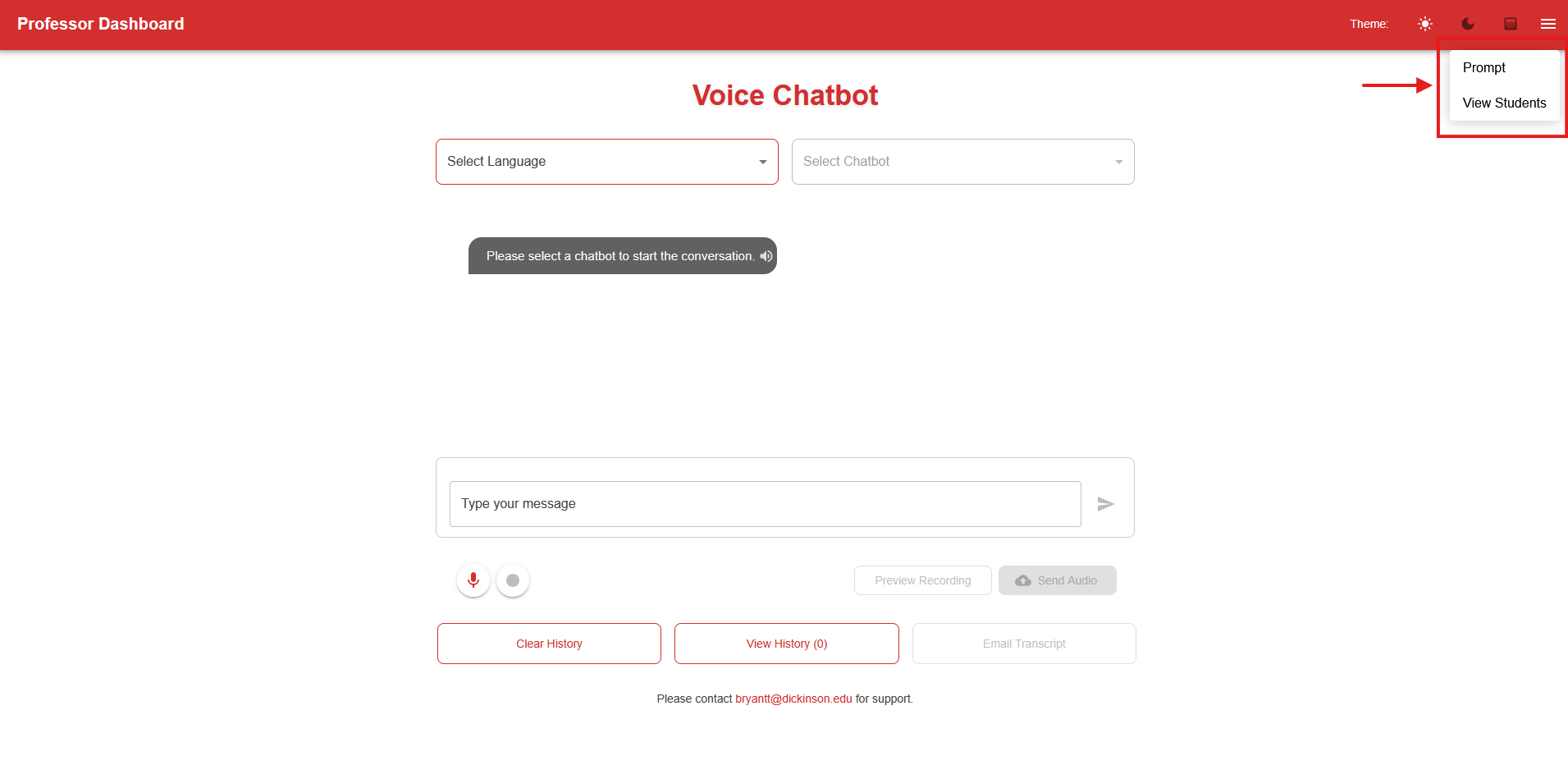
To edit or create new chatbots, click on Prompt, or go to https://chatbot.dickinson.edu/profprompt.
To view students, click on View Students, or go to https://chatbot.dickinson.edu/profview.
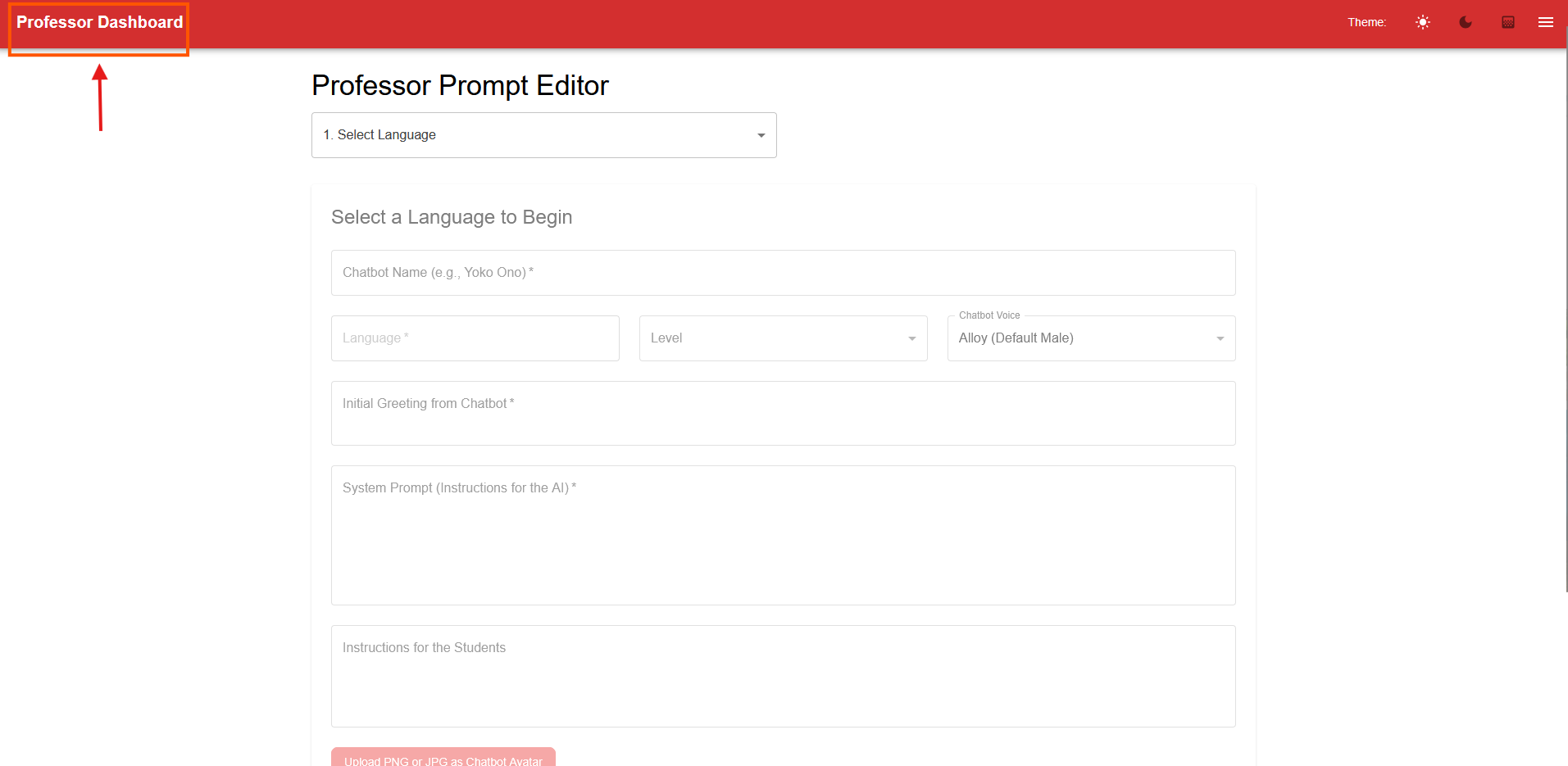
To return to the Voice Chatbot conversation page, click on Professor Dashboard on the top left corner (see below).
View Students
1. After navigating to the View Students page, enter your email in the Professor Email textbox.
2. Click the Load Students button.
3. Click on the individual students to look at conversations that the student submitted. If the student submitted a recording to the chatbot, the professor can listen to it.
Tip: A dropdown labeled Display by will appear below Load Students, professors can either select Students or Chatbots. If Chatbots is selected, the professor can click on individual chatbots, and look at students who submitted conversations with that chatbot.
Contact Todd at bryantt@dickinson.edu with any questions and to get started.