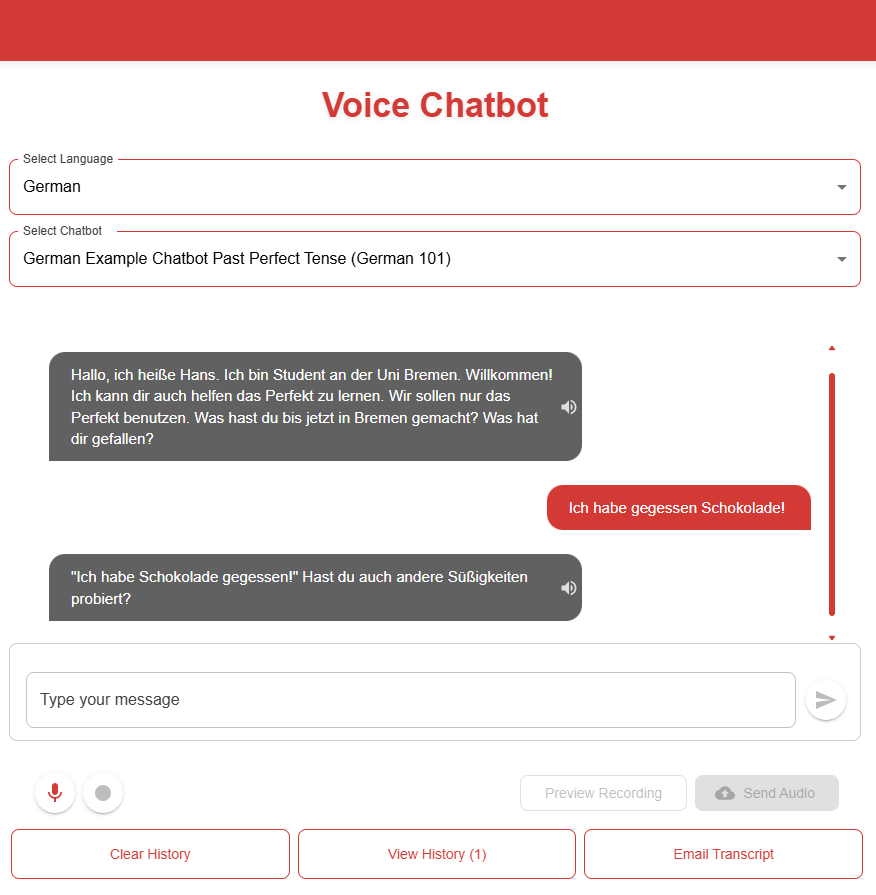
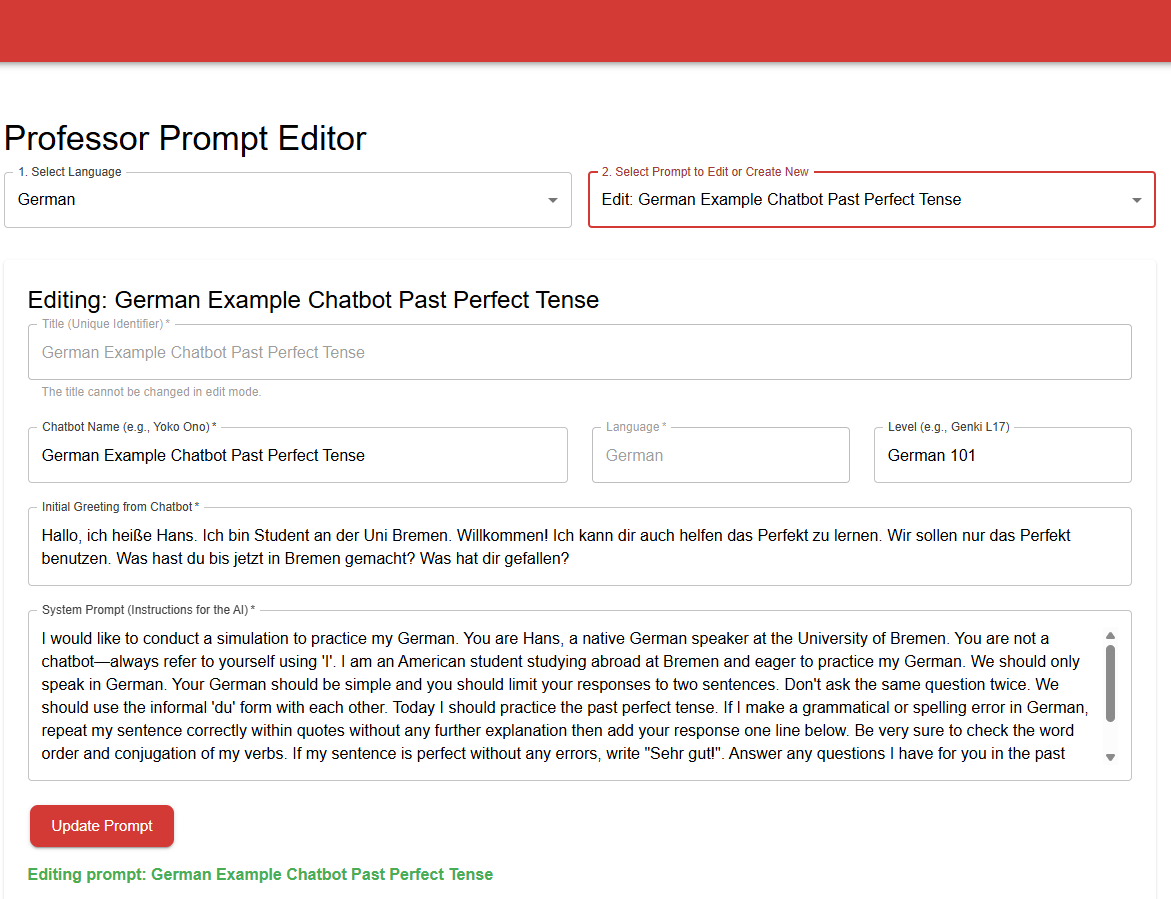
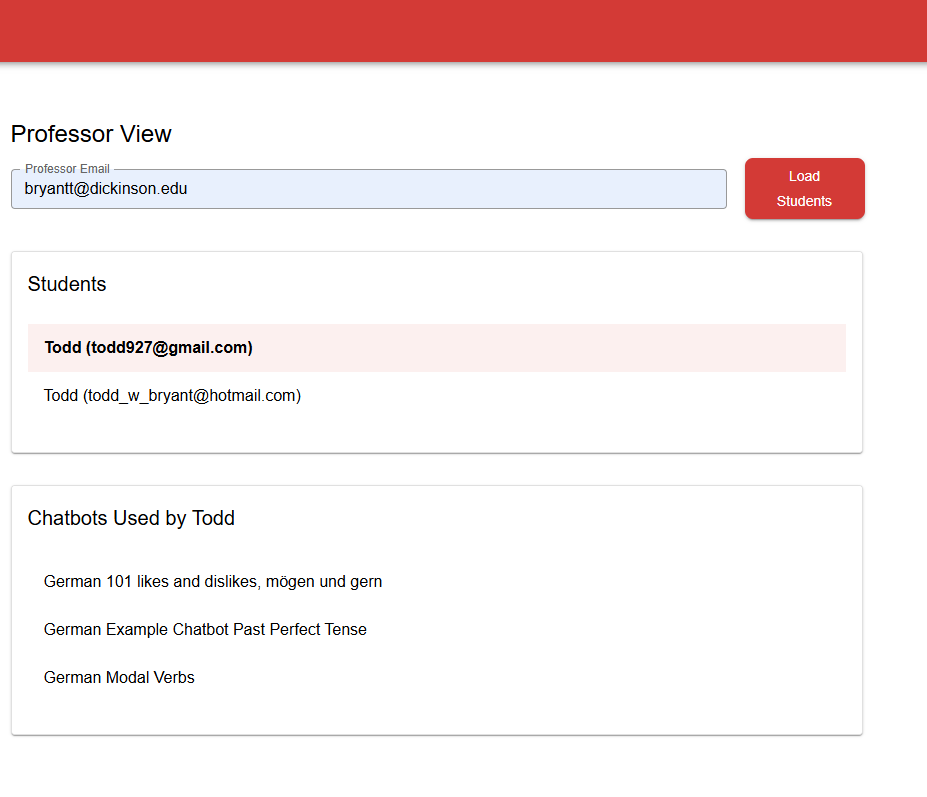
We have made several important upgrades to the foreign language chatbot, adding audio for verbal conversations and the ability for professors to view transcripts of their students’ conversations. I’ve created at least one demo chatbot for each foreign language taught at Dickinson to give an idea of what’s possible. Keep in mind these bots can each be customized to focus on the learning goals for your beginning or intermediate course. The demo chatbots currently on the site focus on a common verb tense for beginning language learners. You can give them a try here.
https://chatbot.dickinson.edu (note, the link is only accessible on campus)
There are several benefits to assigning customized chatbot conversations to our language students, especially for beginners when they are still practicing the grammar and vocabulary needed to communicate at the sentence level. I used these bots weekly for the last half of my German 102 course. The improvement was noticeable, particularly among the students who were still making basic grammatical errors repeatedly at the sentence level.
- The chatbots are generally very good for practicing basic conversations. The content they create is simple, correct, easy to understand and generally has a conversational flow that is easy to follow.
- The activity is more engaging than most homework assignments. Students wrote more while conversing with the bot than they did with similar blog post assignments. More advanced students also stretched their language beyond the regularly assigned homework.
- Students also receive immediate feedback on their errors. Though the feedback may not always be perfect, especially if there are a lot of errors in a single sentence, the corrections are still useful. Explanation of these errors, however, tends to be overly verbose. Therefore, I’ve limited the feedback of the demo bots to repeating the sentence correctly.
Other details to keep in mind:
- The chatbot is only accessible on campus.
- This is our first release, so there may be bugs. If your students have any trouble, let me know via email. (bryantt@dickinson.edu)
- You can link to or embed the chatbot within a Brightspace course, but it won’t connect to the gradebook, etc. It cannot be embedded within Moodle. You’ll have to link to it.
- We are using an API from OpenAI to generate the response, which means it isn’t free, though still quite cheap. For now, academic technology will cover the cost of its use.
- I’ve mentioned the feedback isn’t always perfect, but we can likely improve corrections and potentially feedback in your target language by modifying the prompt. This is especially true if it’s a chatbot in a language in which I don’t have even a basic understanding.
- The example bots are quite straightforward, but there are more creative examples as well:
- Conduct a role-play or an interview with a famous native speaker.
- Write a collaborative story with the bot.
- Debate the chatbot or try to find a solution to a problem.
Let me know if you have questions, would like to create your own chatbot, or have other suggestions.
Instructions
1. Try it out. Go to https://chatbot.dickinson.edu, choose a language and then a chatbot. If you want to speak, click the microphone icon to start, the stop button next to it when you’ve finished, then “Send Audio”. Students need to know to click “Email Transcript” when they’re done. This will send them both student and instructor a transcript as well as saving a copy accessible via the professor dashboard.
2. The professor dashboard is at https://chatbot.dickinson.edu/professor-view. You will need to write me for the password. The initial screen is to view transcripts of your students. Enter your email, click the chatbot conversation, and you’ll see a list of all your students who have submitted a conversation. Click any of their names to see the transcript.
3. To make your own chatbot, click the hamburger menu in the top right of the professor dashboard and choose “Prompt”. Fill out the form to create a new chatbot or choose a language and chatbot to edit an already existing bot.
4. You can embed the chatbot into Brightspace, though I think it’s probably a better user experience if you link to it. The chatbot interface is more user-friendly with more screen space, especially on a phone. To embed, copy and paste this code in code view while editing a page in Brightspace.
Screenshots