
The GoPro HERO5 Black is a compact, durable action, waterproof camera designed for capturing high-quality video and photos in dynamic environments. You might choose the HERO5 Black when you need a small, portable camera for movement-based shots, hands-free recording, or situations where a traditional camera isn’t practical. It’s ideal for action footage, point-of-view shots, time-lapse projects, and creative angles.
This tutorial will help you get started with the GoPro HERO5 Black. Follow the steps below to learn how to power on the camera, record video, and use basic features.
1. Turning the Camera On
- Make sure the battery is charged and a microSD card is inserted by pressing the button on the bottom of the GoPro and gently sliding to the right
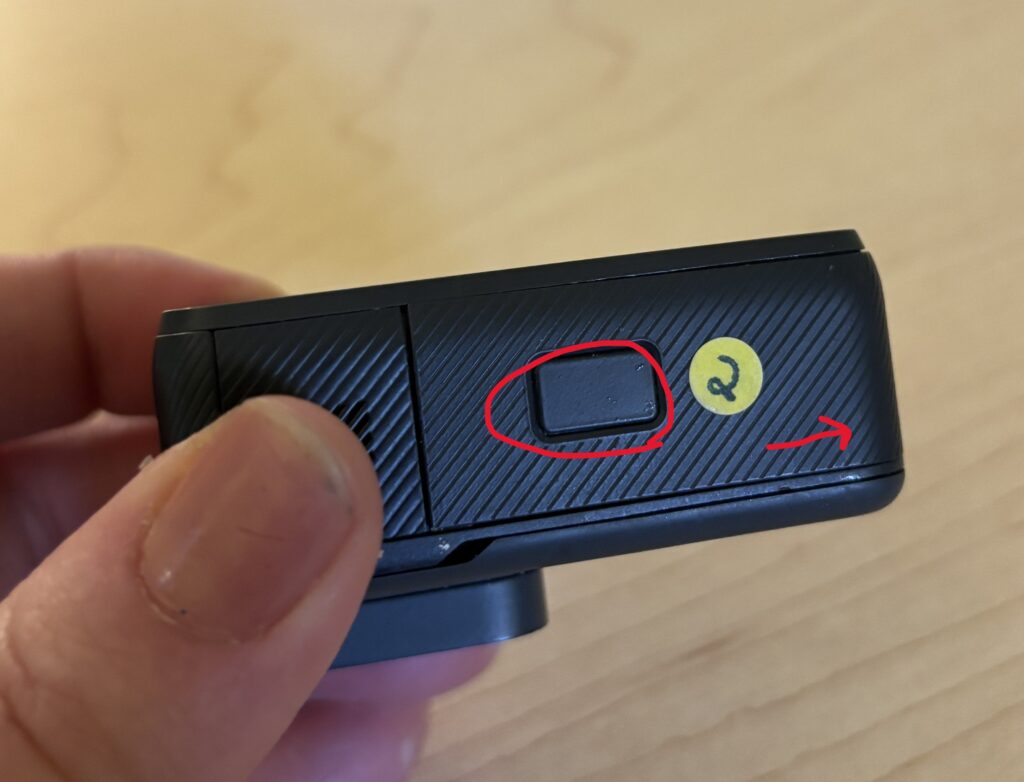
- Press and hold the Power/Mode button on the side of the camera to power the device on
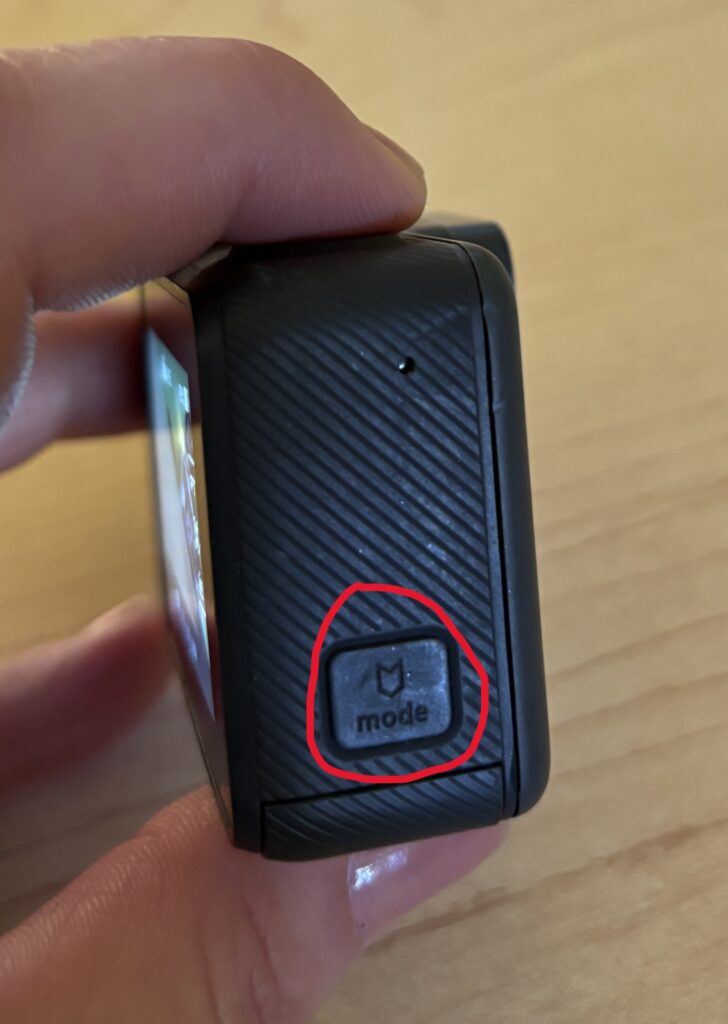
2. Adjusting Settings
- Swipe down on the screen and tap the lock to unlock the settings
- On the touchscreen, press any settings you’d like to adjust (ex: frame rate, resolution, time lapse, etc.)
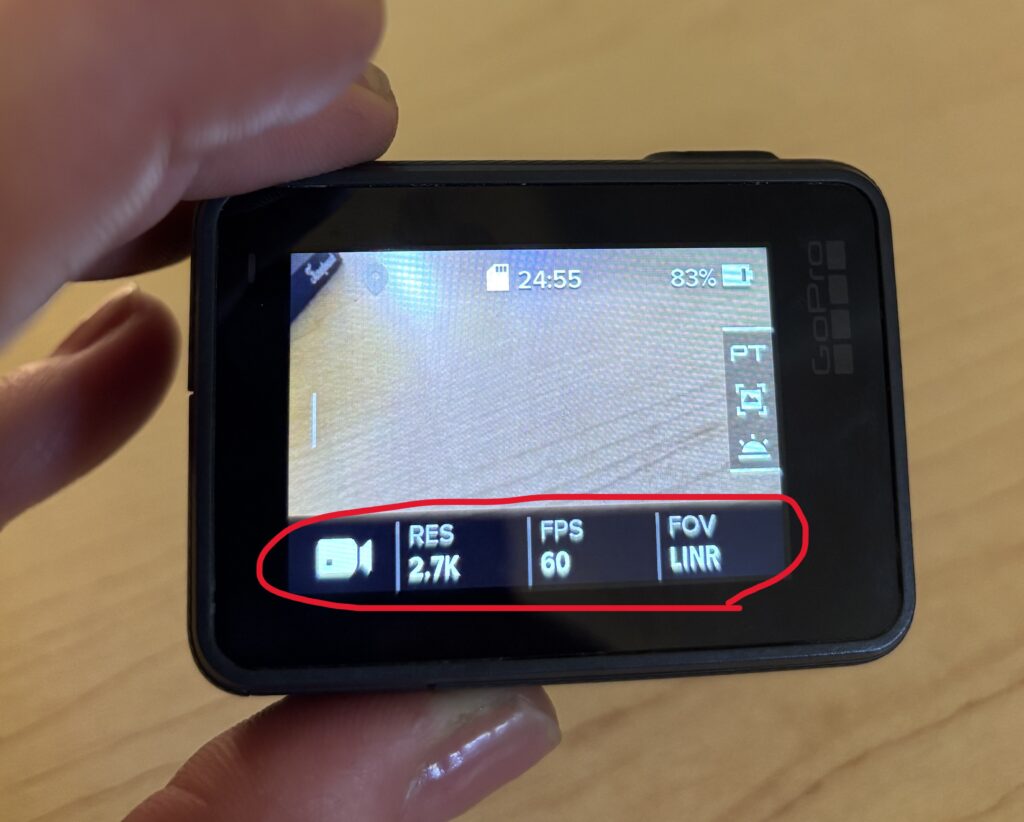
3. Recording Video
- Press the Shutter button on the top of the camera to start recording
- Press the Shutter button again to stop recording
4. Taking Photos
- Swipe on the touchscreen to switch to Photo mode
- Frame your shot
- Press the Shutter button to take a photo
5. Mounting and Stability
The GoPro works best when securely mounted.
- Use the mounts provided by the Media Center
- Double-check that mounts are tight before recording
- Use a tripod or grip for stationary shots
6. Audio Basics
- The built-in microphones record sound automatically
- Avoid covering the microphone openings
- Wind and background noise can affect audio outdoors
7. Reviewing and Deleting Footage
- Swipe down on the touchscreen and tap Playback
- Swipe left or right to review clips
- Delete clips you don’t need to free up storage space
Helpful Tips
- Charge batteries fully before filming
- Clean the lens before recording
- Use shorter clips for easier editing
- Test your setup before important shots
You’re Ready to Capture the Action
The GoPro HERO5 Black makes it easy to capture immersive video from unique angles. Start with automatic settings, secure your camera properly, and focus on creative positioning to get the most out of your footage.
For a detailed video walkthrough on using the GoPro Hero 5 Black, see the video below.